Importing Bundles
Step 1
Download the bundle you wish to install. It should be a .bundle file.
Step 2
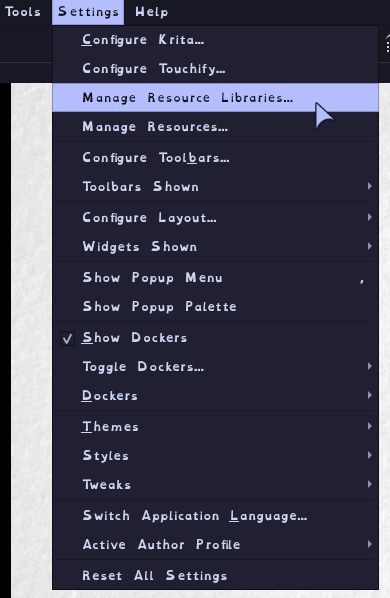
Open Krita and navigate to the Manage Resource Libraries menu from the Settings tab.
Step 3
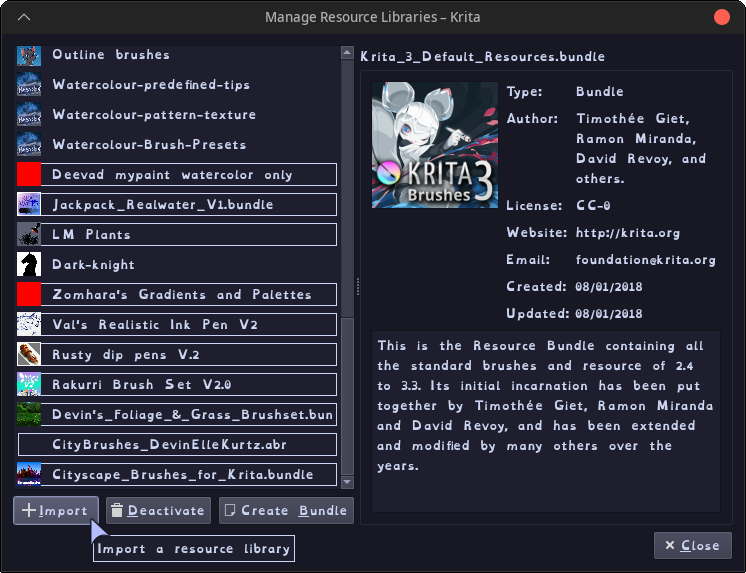
Click the Import button at the bottom left of the window.
Step 4
In the new file explorer window, open the .bundle file you downloaded. If you downloaded multiple bundles to import, you can select them all here.
Step 5
Restart Krita. The new resources won't be accessable until you do so.
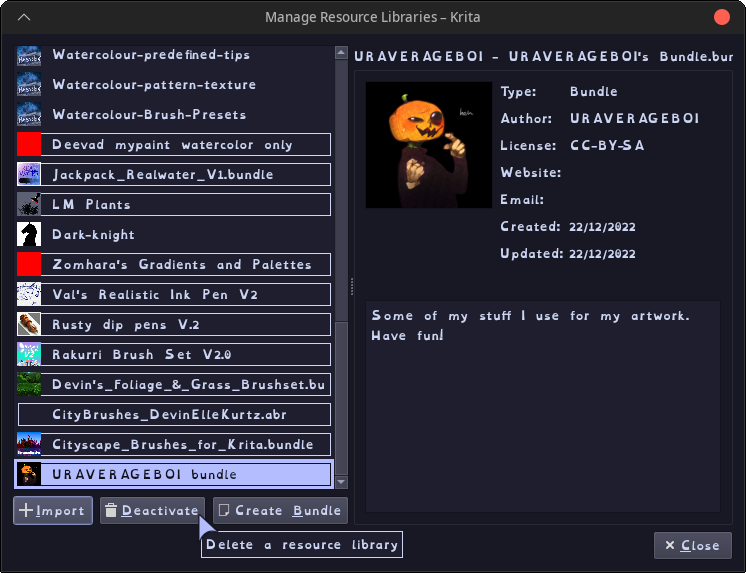
And you're done! Remember, you can always activate/deactivate any bundle you've imported by clicking the Activate/Deactivate button. Activated bundles will be outlined, while deactivated ones will not be outlined.
Importing Plugins
There's two ways of importing plugins, from a file or from the internet. I'll cover how to import a plugin from a file.
Step 1
Download the plugin you wish to use. It should be a .zip file.
Step 2
Go to Tools > Scripts and click Import Python Plugin From File.
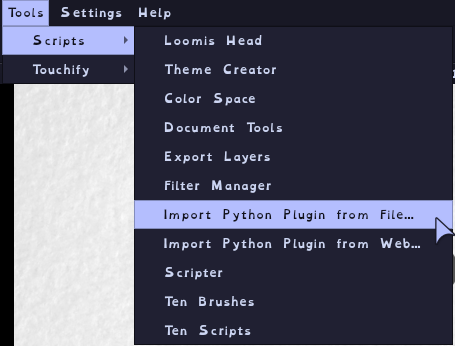
Step 3
Navigate to and open the zip file you downloaded in the new file explorer window.
Step 4
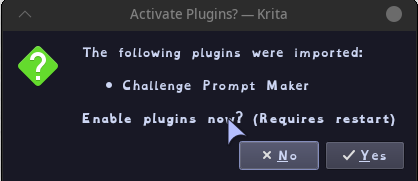
Click Yes on the dialog box that follows. You will need to restart Krita to use the new plugin.